How to View CCTV Cameras Remotely on Your Smartphone
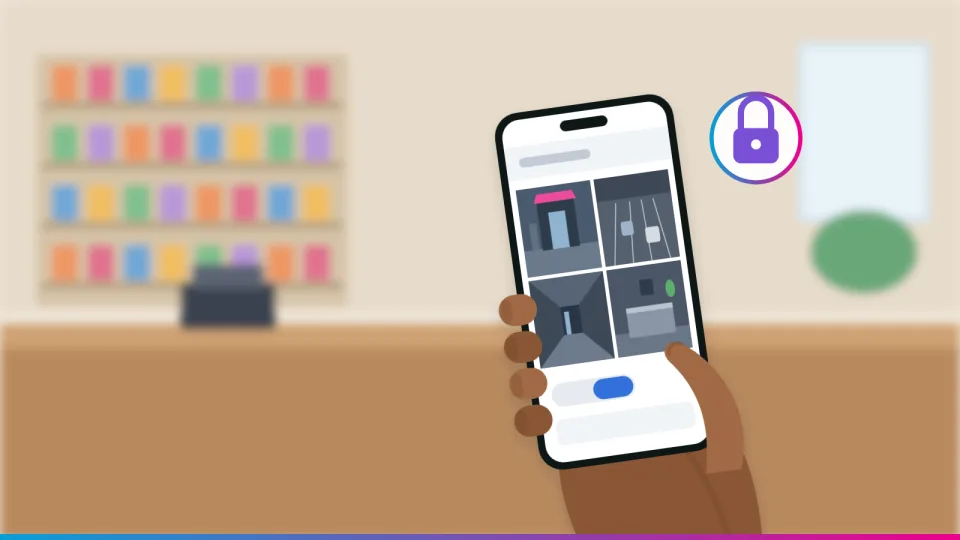
You can watch your CCTV from your phone using the official app from your recorder's manufacturer or a VPN, without opening your recorder to the internet. This guide explains how remote viewing works, how to set it up safely and how to share access properly.
How your phone reaches the recorder, and why the router matters
How to add a recorder to the manufacturer's official app
Why port forwarding is risky and what to use instead
How to share access without giving out the admin password
What to check when the app says the device is offline
Applies to
NVRs and DVRs with a manufacturer cloud or P2P service
Hikvision (Hik-Connect), Dahua (DMSS), TP-Link VIGI and UniFi Protect systems
iPhone or Android phone
Tools Required
Your smartphone with the official app from the App Store or Google Play
The recorder's admin password and the label with its QR code and serial number
Before you start
The cameras already show live video on the recorder at the site
The recorder is connected to a router with working internet
You own the system, or have the owner's permission
Important
Do not forward router ports to the recorder or turn on UPnP to make the app work.
Only install the app from your manufacturer's official store listing.
Never share the recorder admin password; use the app's device sharing instead.
Supported Models
Find the procedure for your exact model
Procedures differ between manufacturers, models and firmware. Choose yours to see the method, where the controls are, what you need and the official source.
Hikvision · Mobile app
Hik-Connect app
Verified
Method
Scan device QR code
Where
QR code usually on a label on the device's back cover
Tools
Smartphone, device label
Expected time
About 5 minutes
On the device list, choose Scan QR Code and scan the device label (or a photo of it). Tap Add, then enter the device verification code. The default code is usually on the label; otherwise use the code you created when enabling the Hik-Connect service. If the scan fails, add by Hik-Connect domain or IP.
The Hik-Connect service must be enabled on the device and the device activated and online. A device on another account must be unbound from it first.
Hikvision · Mobile app
Hik-Connect app (sharing)
Verified
Method
Share a device
Where
Device list: swipe the device name left, then Share
Tools
Smartphone
Expected time
About 2 minutes
Choose the recipient by email, phone number or their account QR code, select the cameras to share, set permissions such as Live View and Remote Playback, and finish. Remove sharing under More > Manage Sharing Settings.
The recipient must accept the share in their own app.
Dahua · Mobile app
DMSS app
Verified
Method
SN/Scan
Where
Home screen: + then SN/Scan
Tools
Smartphone, device label
Expected time
About 5 minutes
Scan the device QR code or tap Manually Enter SN. Select the device type, then enter a device name, the user name and the device password, and tap Save. Devices can also be added by IP/domain or online search.
Source is the V1.4.0 manual; screens may differ in newer app versions. The recorder's P2P setting must be enabled and online; check your recorder's manual for the menu.
Dahua · Mobile app
DMSS app (sharing)
Verified
Method
Device Sharing
Where
Home screen: menu next to the device, then Device Sharing
Tools
Smartphone
Expected time
About 2 minutes
Enter the other person's DMSS account or scan their QR code, then select permissions: Playback, Alarm Push Notifications or Device Control. Live View is always included. Up to 6 DMSS users per device.
The six-user limit is from the V1.4.0 manual (2022). Dahua's current DMSS page confirms sharing, live view, playback and alarm notifications but gives no limit; check in the app.
TP-Link · Mobile app
VIGI app
Verified
Method
Scan / Add Device
Where
App: + button after signing in with a TP-Link ID
Tools
Smartphone on the same router as the device
Expected time
About 5 minutes
Sign in with your TP-Link ID, choose Personal Edition or My Organization, tap +, then scan the QR code on the product label (recommended), use Auto Discover on the same network, or Manually Add. Follow the prompts to activate and set a device password, set the time zone and tap Done.
The official guide uses a VIGI camera as its example. For a VIGI NVR, see the separate entry for binding it to a TP-Link ID.
TP-Link · Recorder
VIGI NVR1008H-8MP
Verified
Method
Bind TP-Link ID
Where
NVR Quick Setup, optional step after the cameras are added
Tools
Monitor and mouse on the NVR; TP-Link ID
Expected time
About 5 minutes
Make sure the NVR can reach the internet. In Quick Setup, click Bind TP-Link ID and sign in with your TP-Link ID (sign up first if you have none). This binds the NVR for remote access and management.
If the NVR cannot reach the internet, TP-Link's guide says check the connection and that the NVR is in the same network segment as your router. Other VIGI NVRs may differ; see the NVR's user guide.
Ubiquiti · Mobile app
UniFi Protect app
Verified
Method
UI Account with Remote Management
Where
Console: Settings > Control Plane > Console > Remote Management
Tools
Smartphone, UI Account
Expected time
About 5 minutes
Remote Management is enabled by default during setup. If not, sign in locally, go to Settings > Control Plane > Console and check Remote Management. Then sign in to the UniFi Protect app with the same UI Account. It needs outbound TCP 443 and 8883 only; no inbound ports.
MFA is required on all UI Accounts (Ubiquiti MFA help article). Give other people their own Protect user with suitable permissions.
Step-by-Step Guide
Set up remote viewing on your phone
1 / 10 steps
System informationSimulated
Live view
Playback
Camera
Network
Maintenance
System
Device name
Shop NVR
Model
8-channel PoE NVR
Serial number
On the label
Firmware
Check for updates
Simulated. Write these down before you start.
Step 1
Identify the manufacturer
Find the brand and model on the recorder's label or its system information page. The brand decides which app you need.
Expected result: You know the recorder's brand, model, serial number and firmware version.
System informationSimulated
Live view
Playback
Camera
Network
Maintenance
System
Device name
Shop NVR
Model
8-channel PoE NVR
Serial number
On the label
Firmware
Check for updates
Simulated. Write these down before you start.
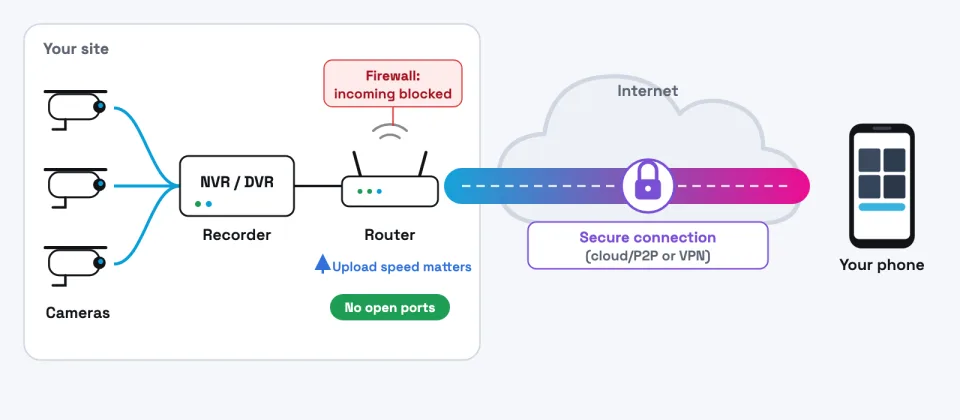
Video goes from the cameras to the recorder, out through your router and the maker's service to your phone. No ports are opened on the router.
Expected result: You can see why the recorder needs working internet, and why upload speed matters.
In the recorder's network settings, turn on the manufacturer's cloud or P2P service and check its status says online.
Expected result: The recorder is registered with the maker's service and can be found by the app.
Network > Cloud / P2P accessSimulated
Live view
Playback
Camera
Network
Maintenance
System
Enable
Status
Online
Verification code
Set or on label
UPnP
Apply
Simulated. The menu name differs by brand: Platform Access, P2P or Cloud Service.
Install the official app, sign in to your own account, tap add device and scan the QR code on the recorder's label or screen.
Expected result: The app reads the serial number and finds the recorder.
Enter what the app asks for: a verification code (Hik-Connect) or the device user name and password (DMSS). Give the recorder a clear name.
Expected result: The recorder appears in your device list as online.
Add deviceSimulated
Serial number
Read from QR code
Device name
Shop NVR
Verification code
••••••
Add
Simulated. The verification code is not the admin password.
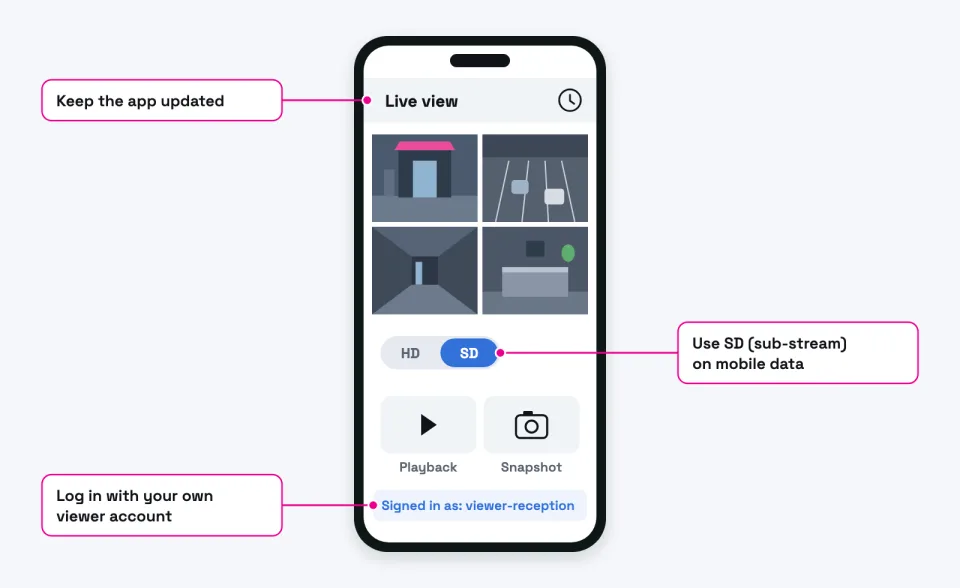
Tap the recorder to see the cameras. On mobile data, switch to the lower-quality sub-stream to avoid buffering.
Expected result: You see live video from each camera.
Live viewSimulated
Camera
Quality
Entrance
SD
Car park
SD
Till
HD
Store
SD
Simulated. SD (sub-stream) saves data.
Open playback, pick a camera and date, then drag the timeline to the time you need. Export only the clips you need to keep.
Expected result: Recorded footage plays from the recorder's hard drive.
PlaybackSimulated
Camera
Entrance
Date
Yesterday
Time
18:30
Play
Simulated. Footage stays on the recorder unless you export it.
Turn on alerts only for the cameras and events that matter, such as motion or line crossing at night, to avoid constant alerts.
Expected result: Your phone notifies you of chosen events.
NotificationsSimulated
Push notifications
Entrance motion
Car park line crossing
Corridor motion
Simulated. Event types depend on the cameras.
Use a unique password and turn on two-step verification where offered. Share the device with each person instead of giving out the admin password.
Expected result: Each viewer has their own access, which you can remove at any time.
Account security and sharingSimulated
Two-step verification
Shared with
manager@example.com
Live view
Playback
Settings
Save
Simulated. Options vary by app.
If the app says offline, check site power, test the app on the site Wi-Fi, check the internet, then the recorder's cloud status.
Expected result: You find whether the break is the recorder, the router, the internet or the phone.
Troubleshooting
Common problems and how to fix them
1 App says the device is offline
Likely cause The recorder is not reaching the maker's service: no internet, wrong gateway or DNS, or the cloud service is off.
Solution Check the internet at the site, then the recorder's network settings and cloud status page.
2 Offline after a new router was installed
Likely cause The recorder still points at the old router's address.
Solution Set the recorder to DHCP or enter the new gateway and DNS, then reserve its address on the router.
3 Device is already added to another account
Likely cause The installer or a previous owner registered it.
Solution Ask them to unbind or delete it from their account, then add it to yours.
4 Verification code or password rejected
Likely cause Wrong code, or the admin password was used instead of the verification code.
Solution Use the code on the label or the one set when the service was enabled. Do not keep guessing; devices can lock out.
5 Video buffers on mobile data
Likely cause Low upload speed at the site or a weak mobile signal.
Solution Switch to the sub-stream (SD), view fewer cameras at once and test the site's upload speed.
6 Works on site Wi-Fi, not away from site
Likely cause The cloud or P2P service is off or offline, or the app is using a local address.
Solution Enable the service on the recorder, check it is online and re-add the device by QR code.
7 Everything offline during a power cut
Likely cause The recorder and router lose power.
Solution Put the recorder and router on a UPS.
8 No notifications arrive
Likely cause Phone notifications are blocked for the app, or events are not set up.
Solution Allow notifications in the phone's settings, then turn on the event and its push alert in the app and recorder.
In Depth
In Depth
You can watch your CCTV from your phone using the official app from your recorder's manufacturer or a VPN, without opening your recorder to the internet. This guide explains how remote viewing works, how to set it up safely and how to share access properly.
Remote viewing is convenient, as long as the connection is set up safely.
How remote viewing works
Your cameras send video over cables (or Wi-Fi) to a recorder: an NVR for IP cameras, or a DVR for analogue and HD-analogue cameras. Some standalone cameras record to a memory card instead. If you are not sure what you have, CCTV cameras explained covers the basics.
Your phone has to reach that recorder across the internet. The recorder sits behind your router, which by design blocks unsolicited connections from outside, so something has to make the connection possible. There are three common ways, and they are not equally safe.
The recorder stays inside your network; only a secure connection reaches your phone.
Part
Its job in remote viewing
What can go wrong
Recorder (NVR/DVR)
Stores footage and serves live and recorded video to the app
Outdated firmware; shared admin login; cloud service switched off
Router
Connects the site to the internet and blocks unwanted incoming traffic
Port forwarding or UPnP opening holes you did not intend
Internet connection
Carries video out of your site
Low upload speed causes buffering; a power cut without a UPS takes it offline
Phone and app
Logs in and displays the video
Old app version, weak phone lock, mobile data limits
Upload speed matters more than download speed. Internet plans are sold on download speed, but remote viewing uses the site's upload. The full-quality main stream uses far more data than the sub-stream (the lower-quality second stream most recorders offer), so use the sub-stream on mobile data. Our CCTV storage calculator shows typical bitrates per camera.
The three ways to connect
1. The manufacturer's cloud or P2P service. The recorder makes an outgoing connection to the maker's service, and the app finds it by serial number or QR code. No router ports are opened. For most owners this is the simplest safe option, provided the account is well protected. The trade-off is that you rely on the manufacturer's service and its security.
2. A VPN (virtual private network). Your phone joins the site's network through an encrypted tunnel, and the app talks to the recorder as if you were in the building. The recorder is never visible to the internet. The VPN can run on a business router or firewall, or be a "mesh" VPN service that uses outgoing connections and often works where the ISP does not give you a public IP address.
3. Direct port forwarding. The router passes internet traffic straight to the recorder. It is quick, and it puts the recorder's login page in front of anyone scanning the internet. We do not recommend it.
Warning Hikvision's command-injection flaw CVE-2021-36260 let attackers send commands to the web server of affected cameras and recorders. CISA added it to its Known Exploited Vulnerabilities catalog in January 2022, meaning it was used in real attacks. A device whose web server is open to the internet can be attacked before the owner has a chance to update it.
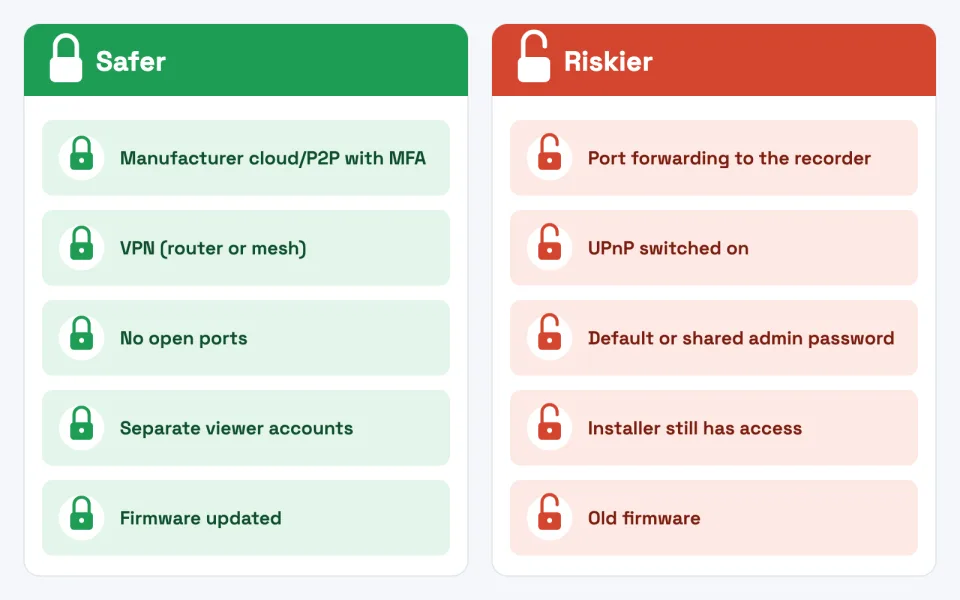
Small choices at set-up make a big difference to how exposed your recorder is.
Why exposing the recorder is risky
The UK's National Cyber Security Centre (NCSC) advises camera owners to consider turning off UPnP and port forwarding on the router, because criminals can use them to reach cameras on your network. CISA's internet exposure guidance tells organisations to remove what does not need to be reachable from the internet and to put necessary remote access behind a VPN or similar controlled gateway. In plain terms: any login page on the open internet will be found and tried, and recorders often go years without updates.
UPnP (Universal Plug and Play) lets devices open router ports by themselves, so a recorder can expose itself without anyone deciding to. Keep it off on the router and the recorder unless you have a specific need.
Manufacturer apps at a glance
Use the app named by your recorder's manufacturer, downloaded from the official App Store or Google Play listing. Look-alike apps exist, and an app from the wrong maker either will not work or asks for more access than it needs.
Recorder brand
Official app
How a device is added
Hikvision
Hik-Connect
Scan the device QR code (or enter the serial), then enter the device verification code
Dahua
DMSS
"SN/Scan": scan the QR code or type the serial number, then the device user name and password
TP-Link VIGI
VIGI app
Scan the QR code on the product label, auto-discover on the same network, or add manually
Ubiquiti UniFi
UniFi Protect
Sign in with the UI Account that owns the console; Remote Management is on by default
The details differ by app version and recorder firmware, so the app selector on this page lists each method with its official source. A few points apply to all of them:
The verification code is not the admin password. Hik-Connect, for example, asks for a device verification code printed on the label or created when the service was enabled.
A device can belong to only one owner account. If an installer added it to their own account, it must be unbound from that account before you can add it to yours.
The recorder must be online with the cloud service first. If its status page says offline, the app cannot find it, however many times you scan.
Illustrative only. Your app's layout and labels will differ.
Security that matters
Update first. Install the latest recorder and camera firmware from the manufacturer's official site or the recorder's built-in update, and keep the app updated. CISA recommends automatic updates wherever possible.
Use strong, unique passwords for the recorder and for the app account. CISA recommends at least 16 characters, a different password for every account and a password manager; the NCSC's three random words method is easy to remember. Our password generator can help.
Turn on two-step verification (2FA or MFA) on the app account where the platform offers it. CISA explains that it stops someone with a stolen password from logging in. Ubiquiti, for example, has required MFA on all UI Accounts since July 2024.
Turn off what you do not use: UPnP, old port-forwarding rules and unused services. Hanwha Vision's NVR hardening guide suggests disabling DDNS and UPnP if you do not need them.
Lock your phone with a PIN or biometric. Anyone holding an unlocked phone can open the app.
Give each person their own access instead of one shared login. In the apps, device sharing lets the owner grant another account chosen permissions: Hik-Connect lets you pick permissions such as live view and remote playback, and DMSS lets you share with other users (up to six, in Dahua's 2022 manual) and choose playback, alarm notifications or device control (live view is always included). On the recorder itself, create separate users with only the rights they need, and keep one admin account for settings.
If everyone uses "admin", you cannot tell who did what, and you cannot remove one person without changing it for everyone. Sharing can be removed in the app in seconds.
Tip Review the app's sharing list and the recorder's user list every few months. Remove anyone you do not recognise.
When a VPN is the better choice
A VPN suits you when you need the recorder's full settings remotely, have several sites or other systems (access control, alarms) to reach, or prefer not to depend on the manufacturer's cloud. If family members just need one-tap viewing and nobody can manage VPN accounts, a well-protected manufacturer account is usually the practical choice.
When it stops working
Most "device offline" messages in the app have nothing to do with the cameras. Check in this order: is the site powered (a power cut takes down both recorder and router, so put both on a UPS), does the app work on the site's Wi-Fi, is the internet up at the site, and does the recorder's cloud status say online? A new router from the ISP often leaves the recorder with an old gateway or DNS setting. If cameras themselves are dark on the recorder, see why a CCTV camera shows no video or offline.
Warning If someone suggests "just open the ports" to fix it, ask why the cloud service or VPN cannot be fixed instead.
Removing access for former staff or installers
When an employee leaves, or you change installer, do this the same day:
Change the recorder admin password and any passwords the person knew.
Delete their user account on the recorder and remove their device sharing in the app.
Check who owns the app account the recorder is registered to. If it is the installer's, ask them to unbind it, then add it to an account you control.
Revoke their VPN access.
Check the router for port-forwarding rules or remote management you did not authorise.
Look at the recorder's log for unexpected logins.
If you suspect someone has taken control of a device, the NCSC's smart devices guidance advises resetting it following the manufacturer's instructions.
Questions to ask your installer at handover
Which access method did you set up: cloud/P2P, VPN or port forwarding?
Are any router ports forwarded, and is UPnP off?
Whose app account is the recorder registered to? Can it be mine?
Have you handed over the admin password, and removed your own access?
What firmware is installed, and how will updates be done?
Is two-step verification on for the app account?
Can I have written handover notes (users, IP addresses, access method)?
When to call Extrion
If you would like a second pair of eyes, Extrion Tech can set up or review remote viewing for your CCTV system, move it off port forwarding and clean up old installer access, as part of our security auditing and implementation service. See also CCTV installation, or get in touch and tell us what you have.
This guide is general information. Procedures, product features and firmware change, so check your own equipment's documentation before you start.
FAQs
Frequently asked questions
Is the manufacturer's app safe to use?
It is usually the simplest safe option, because nothing is opened on your router. Download it only from the official app store listing, protect the account with a unique password and two-step verification, and keep the app and recorder updated.
Which app do I need for my CCTV?
The one made by your recorder's manufacturer: for example Hik-Connect for Hikvision, DMSS for Dahua, the VIGI app for TP-Link VIGI and UniFi Protect for Ubiquiti. The brand is on the recorder's label or its system information page.
Do I need a static IP address to view my cameras remotely?
No, not for cloud/P2P viewing or most mesh VPNs, which use outgoing connections. A public IP address is needed for port forwarding or a VPN hosted on your own router, and many mobile and fixed-wireless connections do not provide one.
Why does it work on site but buffer on mobile data?
Usually the site's upload speed or your mobile signal is the limit. Switch to the sub-stream (often called SD, fluent or standard), view fewer cameras at once, or test the site's upload speed.
Can I give my staff access without the admin password?
Yes. Use the app's device sharing to give each person their own access with chosen permissions, or create limited users on the recorder. You can remove a person's access at any time without changing anyone else's.
The app says my device is already added to another account. What now?
A device can only belong to one owner account. Ask whoever added it, usually the installer, to unbind or delete it from their account, then add it to yours.
My installer set it up with port forwarding. Am I already hacked?
Not necessarily. Update the firmware, change passwords, check users and logs, then move to the manufacturer's service or a VPN and delete the forwarding rules.
Need Professional CCTV Installation?
Our engineers survey the site, choose the right cameras and recorder, install them neatly and set up safe remote viewing.
Ask for clarification, tell us a problem this did not solve, or suggest a topic. An engineer reads every message, and we use them to improve the Knowledge Center.
BookBook a consultationPick a time to talk through your project.
Call us+255 674 020223
WhatsAppChat with our team.
Emailinfo@extrion.co.tz
PayPay withBank and mobile money detailsPBZ Bank 045 195 9000Mixx by Yas +255 674 020 223Lipa Namba 16172192
Find usKiembesamaki, Zanzibar
Ask Extrion
Engineers reply Mon – Fri, 08:00 – 17:00
End this chat?
We'll send a copy of the conversation to our team. Next time, the chat starts fresh.
online nowPeople browsing Extrion Tech right now
Privacy by design
A few cookies, only with your say-so
We use essential cookies to keep this website secure and working. With your permission we also remember your preferences and play embedded videos. No advertising trackers, ever. Read our cookie notice