Hikvision Camera Offline: How to Find and Fix the Cause
A Hikvision camera that shows offline on the recorder has a power, cable, address or password problem, while a system that is offline only in Hik-Connect has an internet or platform problem. This guide shows how to tell them apart and fix each one.
How to tell a camera fault from a Hik-Connect platform fault
How to read the NVR channel status and PoE port lights
How to use SADP to find IP conflicts and inactive cameras
How Hikvision's login lock causes password errors
Where to check the Hik-Connect connection status on the recorder
Applies to
Hikvision NVRs with built-in PoE ports
Hikvision IP cameras on an NVR or PoE switch
Hikvision recorders using Hik-Connect for remote viewing
Tools Required
A short known-good Ethernet patch lead
A laptop with Hikvision SADP or HiTools Delivery (from Hikvision's website)
A simple network cable tester (optional)
Your handover notes: camera IP addresses and passwords
Before you start
Access to the NVR screen or web page with an admin account
Physical access to the NVR and any PoE switch
Important
Do not climb ladders or work on roofs alone. Call a technician for cameras out of safe reach.
Do not open junction boxes or power supplies connected to mains power.
Do not keep guessing passwords: each wrong attempt can lock the camera for longer.
Do not forward router ports to the NVR to fix Hik-Connect.
Supported Models
Find the procedure for your exact model
Procedures differ between manufacturers, models and firmware. Choose yours to see the method, where the controls are, what you need and the official source.
Turn on Enable, accept the service terms and set a verification code. Connection Status shows Online when the recorder reaches the platform; Bind Status shows Yes when it is bound to an account.
Enabling ISUP platform access disables other platform access, including Hik-Connect.
Hikvision · NVR (Hik-Connect status)
NVRs with the NVR 4.0 GUI
Verified
Method
Platform access status on the local menu
Where
Menu > System > Network > Advanced
Firmware
NVR 4.0 GUI
Tools
Monitor and mouse
Expected time
About 5 minutes
Check Enable, then read the Register Status. If it stays offline, check TCP/IP and DNS under Menu > System > Network > TCP/IP.
Exact field names vary within the 4.0 generation; check your firmware.
Hikvision · NVR (Hik-Connect status)
NVRs with the NVR 3.0 GUI
Verified
Method
Platform access status on the local menu
Where
Menu > Configuration > Network > Platform Access
Firmware
NVR 3.0 GUI
Tools
Monitor and mouse
Expected time
About 5 minutes
Check Enable, then read the Register Status. If it stays offline, check the IP address, gateway and DNS under Menu > Configuration > Network > General.
Older firmware; consider updating if the model is still supported.
Step-by-Step Guide
Find out why a Hikvision camera is offline
1 / 9 steps
Step 1
Check the NVR screen, not just the app
Look at live view on the monitor at the site. If every camera shows a picture there, the cameras are fine and the fault is the Hik-Connect connection.
Expected result: You know whether to check the cameras or the recorder's internet connection.
Open the IP camera list on the recorder and note the exact status shown for the offline channel.
Expected result: You have the error wording: network fault, password error or IP conflict.
Configuration > Camera > IP CameraSimulated
Live View
Playback
Camera
Record
Network
System
Channel
IP address
Status
D1 Entrance
192.168.254.2
Online
D2 Till
192.168.254.3
Online
D3 Yard
192.168.254.4
Network unreachable
D4 Store
192.168.1.65
User name or password error
Simulated. Wording and addresses vary by firmware and site.
At the back of the NVR or the PoE switch, find the offline camera's port. A dark port usually means no link: a cable, plug or camera fault.
Expected result: A lit port means power and link are present, so look at the address or password.
Move the offline camera's cable to a port a working camera used, and try a short known-good lead at the recorder end.
Expected result: If the fault moves with the port, the port is bad. If it stays, check the cable or camera.
If cameras drop out after dark, add up their maximum power with infrared on and compare it with the recorder's total PoE budget.
Expected result: You know whether the budget, not one camera, is the cause.
Run SADP on a laptop on the camera network. Look for duplicate addresses, cameras in the wrong range and cameras marked Inactive.
Expected result: You find IP conflicts, wrong subnets or a camera that was reset.
SADP: online devicesSimulated
Device
Status
IPv4 address
IP camera
Active
192.168.1.64
IP camera
Inactive
192.168.1.64
NVR
Active
192.168.1.10
Simulated. Two devices share one address and one camera needs activation.
Edit the channel and enter the camera's correct password. If the camera has locked the NVR out, wait for the lock to expire before testing.
Expected result: The channel status changes to online.
Edit IP CameraSimulated
Live View
Playback
Camera
Record
Network
System
IP address
192.168.1.65
Protocol
HIKVISION
User name
admin
Password
••••••••••
OK
Simulated. Use the password from your handover notes, never guesses.
If the cameras work on site but the app says offline, open the recorder's Hik-Connect page and read the connection status.
Expected result: Online means the platform link works. Offline means check the gateway and DNS next.
Configuration > Network > Hik-ConnectSimulated
Camera
Record
Network
Event
System
Enable
Server IP
dev.hik-connect.com
Connection Status
Offline
Bind Status
Yes
Apply
Simulated. Older firmware shows Register Status under Platform Access.
In the TCP/IP settings, make sure the gateway is the router's current address and the DNS server works. Apply, then recheck the Hik-Connect status.
Expected result: The connection status changes to Online and the app reconnects.
Configuration > Network > TCP/IPSimulated
Camera
Record
Network
Event
System
DHCP
IPv4 address
192.168.1.10
Default gateway
192.168.1.1
Preferred DNS
8.8.8.8
Apply
Simulated. Use your own router's address.
Interactive Demonstration
Diagnose the problem step by step
What are you seeing?
One camera offline on the NVR
Is the camera's port light lit on the NVR or PoE switch?
If not, the likely cause
No power or no network link to the camera.
What to do: Reseat the cable, try a known-good patch lead and another port, then test the cable run. If the fault moves with the port, the port is faulty.
Is the channel free of any user name or password error?
If not, the likely cause
The password saved on the NVR no longer matches the camera.
What to do: Enter the correct camera password on the channel. If the camera has locked the NVR out, wait for the lock to expire.
Does SADP show the camera as Active?
If not, the likely cause
The camera is inactive, usually because it was reset.
What to do: Activate the camera with a strong password, or let the NVR activate it when you add it again.
Is the camera's IP address unique and in the NVR's range?
If not, the likely cause
IP address conflict or wrong subnet.
What to do: Give the camera a free address in the NVR's range, or let the NVR assign it on its PoE ports.
Every check passed
Possible firmware mismatch or camera fault.
What to do: Note the camera and NVR firmware versions, update the NVR from Hikvision's website, and call a technician if the camera still will not connect.
Several cameras drop out together
Are the NVR and PoE switch powered and on a UPS?
If not, the likely cause
Shared power has failed or dipped.
What to do: Restore power, then put the NVR, switches and router on a UPS with voltage regulation.
Do they stay online at night as well as by day?
If not, the likely cause
The total PoE budget runs out when infrared switches on.
What to do: Add up the cameras' maximum power and compare it with the PoE budget. Move some cameras to another PoE switch.
Do the offline cameras use different switches or cable routes?
If not, the likely cause
A shared switch, uplink or cable route has failed.
What to do: Check the shared switch's power and uplink, and inspect the shared route for damage.
Every check passed
Possible recorder or network fault.
What to do: Reboot the NVR from its menu, check the system log for errors, and call a technician with photos of the port lights.
Offline in Hik-Connect only
Does the internet work at the site on another device?
If not, the likely cause
The site's internet connection is down.
What to do: Restart the router or contact your ISP. Hik-Connect will reconnect when the internet returns.
Is Hik-Connect enabled on the recorder?
If not, the likely cause
The service is off, or ISUP platform access has replaced it.
What to do: Enable Hik-Connect on the recorder's platform access page and set a verification code.
Is the recorder's gateway the router's current address?
If not, the likely cause
The recorder points at an old router.
What to do: Set the correct gateway, or use DHCP and reserve the recorder's address on the router.
Is a working DNS server set on the recorder?
If not, the likely cause
The recorder cannot look up Hikvision's server.
What to do: Set a working DNS server, such as your router or a public DNS server, then recheck the status.
Every check passed
The platform connection may be blocked or the firmware outdated.
What to do: Try the alternative server address, update the firmware, and ask whoever manages the firewall to allow the recorder's outbound connection.
Offline after rain or a storm
Are the outdoor connectors dry and free of green or white crust?
If not, the likely cause
Water ingress or corrosion in the connector.
What to do: Have the plug replaced, fit the waterproof kit and move the joint into a sealed junction box.
Do the affected ports light up when a working camera is connected?
If not, the likely cause
The port was damaged by a surge.
What to do: Move the camera to a working port and fit properly earthed surge protection on long outdoor runs.
Every check passed
Possible damage to the camera or cable.
What to do: Call a technician to test the cable and the camera at the mounting point.
Troubleshooting
Common problems and how to fix them
1 One channel offline, port light dark
Likely cause No PoE power or no link: cable, plug, port or camera fault.
Solution Try a known-good patch lead and another port. Test the cable run; re-terminate corroded plugs.
2 Several cameras drop out at night
Likely cause Infrared raises power draw beyond the total PoE budget or a long cable's limit.
Solution Compare total maximum camera power with the PoE budget; move cameras to another PoE switch.
3 Channel shows user name or password error
Likely cause The camera's password changed, or the camera locked out the NVR after wrong attempts.
Solution Enter the correct password on the channel and wait for the lock to expire. Never guess repeatedly.
4 SADP shows the camera as Inactive
Likely cause The camera is new or was factory reset and has no admin password.
Solution Activate it with a strong password, or let the NVR activate it with its camera activation password.
5 Two devices share one IP address
Likely cause A new device or router handed out an address already in use.
Solution Give one device a free address in the NVR's range, or reserve addresses on the router.
6 Cameras fine on site, Hik-Connect offline
Likely cause Wrong gateway or DNS, Hik-Connect disabled, ISUP enabled, or a firewall blocking the platform.
Solution Check the Hik-Connect status page, then the gateway and DNS. Try the alternative server address and update firmware.
7 Camera drops out after rain
Likely cause Water or corrosion in an outdoor connector.
Solution Replace the plug, fit the waterproof kit, use a sealed junction box and a drip loop.
8 Ports dead after a storm or power cut
Likely cause Surge damage to a PoE port or supply.
Solution Move cameras to working ports, then fit a UPS and properly earthed surge protection.
In Depth
In Depth
A Hikvision camera that shows offline on the recorder has a power, cable, address or password problem, while a system that is offline only in Hik-Connect has an internet or platform problem. This guide shows how to tell them apart and fix each one.
Two different faults with the same word
"Offline" means very different things depending on where you see it.
One or more channels offline on the NVR screen. The fault is between that camera and the recorder: power, the cable, the PoE port, the IP address or the password.
The whole device offline in the Hik-Connect app, while every camera shows live video on the monitor at the site. The cameras are fine. The recorder is not reaching Hikvision's platform, usually because of the internet connection, the gateway or DNS setting, or the platform setting on the recorder.
Work out which one you have before you touch anything. It saves hours of climbing ladders for a problem that lives in the router. For a brand-neutral version of the camera-side checks, see CCTV camera showing no video or offline.
What you see and where to look
What you see
Where the problem usually is
One channel shows offline, "No video" or a red icon on the NVR
That camera, its cable, its PoE port or its password
Several cameras drop out together, often at night
The PoE power budget, a switch or a shared power supply
A camera comes and goes, especially after rain
Water in an outdoor connector or a damaged cable
The channel reports a user name or password error
The password saved on the NVR channel no longer matches the camera
SADP shows the camera as Inactive
The camera has been reset (or is new) and has no admin password yet
Cameras fine on site, Hik-Connect shows the device offline
Internet, gateway, DNS, or the recorder's platform access setting
Everything went offline after a power cut or storm
A tripped supply, a damaged PoE port or a surge
Power and PoE
Power over Ethernet has fixed limits per port, and every PoE switch or NVR also has a total budget shared by all its ports. Under the IEEE standards, an 802.3af (Type 1) port supplies up to 15.4 W, of which about 13 W reaches the camera, and an 802.3at "PoE+" (Type 2) port supplies up to 30 W, with 25.5 W at the camera. The newer 802.3bt standard goes higher still, for PTZ cameras and heaters: up to 51 W at the device for Type 3 and 71.3 W for Type 4, according to the Ethernet Alliance. Most fixed cameras need far less than the per-port limit, so the total budget is what usually runs out.
Infrared night vision draws more power than daytime operation. That is why a system that is close to its budget, or a long or thin cable, often fails only after dark. Compare the recorder's or switch's total PoE budget (in its datasheet) with the cameras' maximum consumption, not their typical figure. Our PoE budget calculator does the sums.
If the budget is too tight, move some cameras to a separate PoE switch with its own budget, or replace the switch with a larger one.
Long cables and the NVR's long-distance mode
A normal Ethernet run is limited to 100 metres. Hikvision's current NVR manual describes a Long Distance mode for the recorder's built-in PoE ports (Configuration, Camera, PoE Settings) that supports runs of 100 to 300 metres, at a reduced bandwidth of up to 6 Mbps per camera, with Cat5e or Cat6 cable required beyond 100 metres and Cat6 beyond 250 metres. Short Distance is the default. If a camera on a very long run keeps dropping out, check this setting, but treat the long mode as a fix for an existing cable, not a design choice: the lower bandwidth limits picture quality.
Cable faults
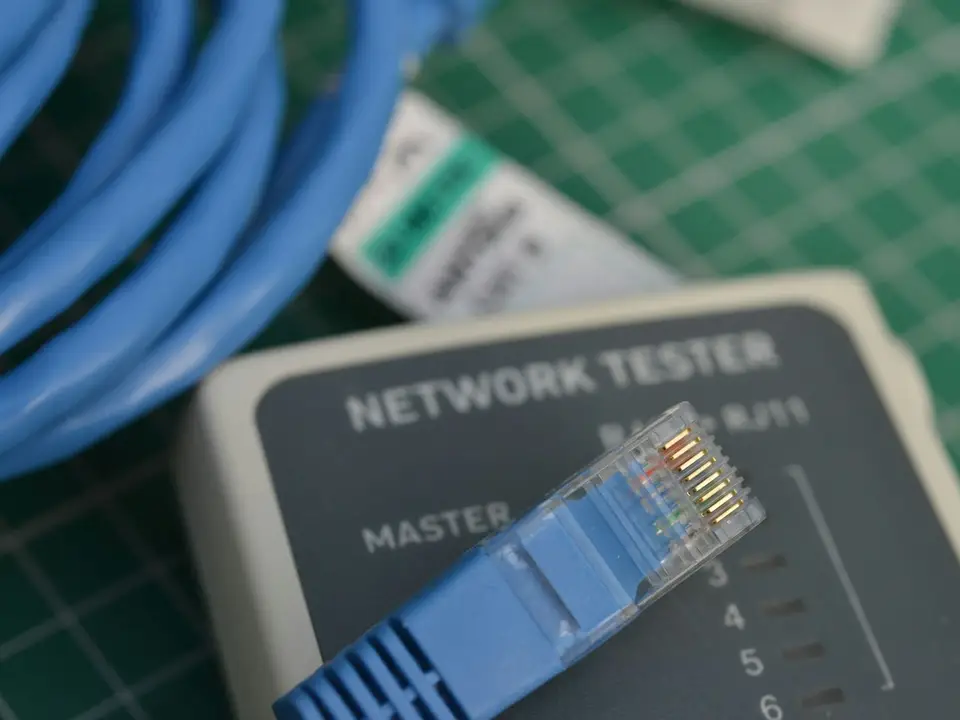
Swap in a short, known-good patch lead at the recorder end, or test the run with a cable tester.
Use solid-copper Cat5e or Cat6. Copper-clad aluminium (CCA) cable heats up and loses voltage under PoE.
Re-terminate any plug that looks loose, discoloured or corroded. Near the coast, salt air can corrode exposed RJ45 contacts within months.
IP addresses, SADP and inactive cameras
Hikvision's free SADP tool (download it only from Hikvision's official website) finds Hikvision devices on the local network and shows each one's IP address, status (active or inactive), firmware version and serial number. Run it on a laptop connected to the same network segment as the cameras. Hikvision says SADP stopped receiving updates in April 2026 and recommends moving to HiTools Delivery, which also covers device discovery, network settings and password reset. Either tool works for the checks below.
Two devices with the same IP address: give one a different, unused address. Hikvision cameras also report an "IP address conflicted" exception for this.
Inactive camera: the camera has been factory reset (or is new) and needs an admin password before the NVR can use it. Current Hikvision NVRs can activate inactive cameras automatically with the recorder's camera activation password when they are added. If someone reset a camera, our guide to resetting an IP camera to factory settings explains what happens next.
Wrong range: a camera with an address in a different subnet from the NVR will not connect. Change it to the NVR's range, or let the NVR add it. Our IP subnet calculator helps check ranges.
Cameras plugged into the NVR's own PoE ports are added through the PoE interface and appear in the IP channel list. To see them in SADP, Hikvision's FAQ says to connect the laptop to one of the NVR's PoE ports. Cameras on an external switch must be on the same subnet as the NVR's main network port.
Tip Hikvision NVRs can export the IP camera list (addresses, ports and passwords) to a USB stick. Keep that file, with the cameras' locations, somewhere safe. It turns most "offline" calls into a five-minute job.
Password errors and lockouts
If the channel reports a user name or password error, the password saved on the NVR channel no longer matches the camera's. This often happens after someone changes a camera password directly, or after a camera is replaced.
Hikvision cameras have an illegal login lock. In the 2024 camera manual it is on by default: after seven wrong admin password attempts (five for other users) the camera blocks the IP address that tried, for 30 minutes by default. In the 2026 camera manual for current firmware, the number of attempts and the locking duration are settings the installer can change, so your camera may differ. An NVR that keeps retrying an old password is that IP address, so it can stay locked out.
Find the correct camera password in your handover notes.
Edit the channel on the NVR and enter the correct password.
If the camera is locked, wait for the locking duration to pass before testing again.
If nobody knows the camera's password, do not guess: every wrong attempt extends the problem. Use Hikvision's supported recovery methods (security questions or reserved email, where they were set up), or reset the camera as described in our IP camera reset guide. If the NVR's password is the one that is lost, see how to reset a Hikvision or Dahua NVR.
Hik-Connect offline while the cameras work on site
Hik-Connect is switched off by default on Hikvision recorders; it has to be enabled and given a verification code before the app can reach the device. Once it is enabled, the recorder reports its own status, and that status is the first thing to check:
On current firmware, the Hik-Connect page shows Connection Status (Online when the recorder is connected to the platform) and Bind Status (Yes when it is bound to a Hik-Connect account).
Older firmware calls the same field Register Status.
The menu location depends on the firmware generation. The model selector on this page lists the paths we could confirm.
If the status is offline, Hikvision's own troubleshooting guidance works through the network in this order:
Check the IP address, subnet mask and default gateway in the recorder's TCP/IP settings. The gateway must be the router's current address. If you replaced the router, the recorder may still point at the old one.
Check DNS. Hikvision suggests a public DNS server such as 8.8.8.8 or a reliable local one. A wrong or missing DNS server is one of the most common causes.
Try the alternative server address offered by the firmware. Hikvision's 2019 guide names dev.hik-connect.com and litedev.hik-connect.com; newer manuals do not list a default, so only change it if the firmware offers these or Hikvision support advises it.
Update the firmware if the device is on an old version.
Check the firewall. A business firewall or ISP filtering can block the outbound connection to Hikvision's servers.
Two less obvious causes are worth knowing. Enabling the ISUP platform type (used to connect to third-party management platforms) disables other platform access on the recorder, so a system that was moved onto a management platform can quietly drop off Hik-Connect. And a recorder whose clock is badly wrong after a power cut can fail secure connections, so check the date and time.
Warning Do not "fix" Hik-Connect by forwarding router ports to the NVR. It exposes the recorder's login page to the whole internet. Fix the platform connection instead.
Firmware
Download firmware only from Hikvision's official website or the recorder's built-in online upgrade, and match it exactly to the model and region.
Never turn the power off during an upgrade. Hikvision's manual says so explicitly; use a UPS if power is unreliable.
A new camera on an old NVR can connect but misbehave. Updating the NVR first often fixes it.
Write down the current version before updating, so the installer can tell what changed.
Power cuts, surges and salt air
Power cuts, voltage swings and storms are a fact of life for many systems in Zanzibar, and surges travel along long outdoor cables.
Put the NVR, PoE switches and router on a UPS with automatic voltage regulation. Hikvision's own safety notes recommend using the recorder with a UPS.
Fit surge protection to the mains supply and, for long outdoor runs, properly earthed Ethernet surge protectors.
After a storm, note which ports have no link light. A port damaged by a surge may never come back.
Outdoors, use the waterproof cable kit supplied with the camera every time, put joints in an IP66 or better junction box, form a drip loop, replace corroded plugs rather than cleaning them, and prefer stainless steel fixings near the sea.
Warning Do not climb ladders to reach cameras on walls or roofs on your own, and do not open junction boxes or power supplies while they are connected to mains power. Earthing and surge protection on a building's electrical system is electrician's work.
Before you call for help
Collect these details first. They usually halve the time a technician needs:
The NVR model and firmware version (from its system information page).
The camera model, and which channel is offline.
The exact status or error message on the channel, with a photo of the screen.
A photo of the back of the NVR or switch showing the port lights.
Whether the problem started after a power cut, rain, building work or a router change.
A screenshot of the Hik-Connect status page, if the problem is remote viewing only.
When to call Extrion
Extrion Tech designs, installs and repairs CCTV systems, including PoE planning, outdoor cabling, surge protection and Hik-Connect set-up. See our security auditing and implementation service or contact us with your NVR model and a photo of the channel status screen.
This guide is general information. Procedures, product features and firmware change, so check your own equipment's documentation before you start.
FAQs
Frequently asked questions
Why does my Hikvision camera go offline only at night?
Usually power. Infrared lights switch on at night and the camera draws more power. If the PoE budget, a long cable or a weak supply is at its limit, the camera drops out after dark. Check the total PoE budget against the cameras' maximum consumption and the cable length.
The cameras show on the NVR but Hik-Connect says offline. Are the cameras broken?
No. The recorder is not reaching Hikvision's platform. Check the recorder's Hik-Connect status page, then its gateway and DNS settings, and whether the internet works at the site.
What does "Inactive" mean in SADP?
The camera has no admin password yet, either because it is new or because it was factory reset. It must be activated with a strong password before the NVR can use it. Many current NVRs do this automatically when the camera is added.
The NVR says the camera password is wrong, but I have not changed anything. Why?
Someone may have changed the camera's password directly, or the camera was replaced or reset. After repeated wrong attempts the camera also blocks the NVR's IP address for a period. Enter the correct password on the channel and wait for the lock to expire.
Can I reset a Hikvision camera myself?
Some cameras have a reset button, but a reset wipes all settings and the camera must be activated again before the NVR can use it. Read our IP camera reset guide first, and ask your installer if you do not have the handover details.
Will restarting the NVR fix an offline camera?
Sometimes, if the fault was a temporary network or PoE glitch. Use the recorder's own reboot menu rather than pulling the plug, and wait a few minutes for every channel to reconnect. If the same camera drops out again, look for the real cause.
How do I stop salt air damaging outdoor connectors?
Use the supplied waterproof kits, sealed junction boxes rated IP66 or better, drip loops and stainless fixings. Inspect outdoor connections once or twice a year.
Do I need a UPS for CCTV?
Yes, if power cuts are common. A UPS keeps recording through short cuts, protects against voltage swings and stops the recorder shutting down in the middle of writing to the disk.
Need Help With Your CCTV System?
If the reset or recovery is not going to plan, an Extrion engineer can recover access with you, reconfigure the system and check the recordings.
Ask for clarification, tell us a problem this did not solve, or suggest a topic. An engineer reads every message, and we use them to improve the Knowledge Center.
BookBook a consultationPick a time to talk through your project.
Call us+255 674 020223
WhatsAppChat with our team.
Emailinfo@extrion.co.tz
PayPay withBank and mobile money detailsPBZ Bank 045 195 9000Mixx by Yas +255 674 020 223Lipa Namba 16172192
Find usKiembesamaki, Zanzibar
Ask Extrion
Engineers reply Mon – Fri, 08:00 – 17:00
End this chat?
We'll send a copy of the conversation to our team. Next time, the chat starts fresh.
online nowPeople browsing Extrion Tech right now
Privacy by design
A few cookies, only with your say-so
We use essential cookies to keep this website secure and working. With your permission we also remember your preferences and play embedded videos. No advertising trackers, ever. Read our cookie notice